
How to check SSD and hard drive health in Windows

Drives are the part of an old PC most likely to fail, and most of them give some warning first. Every SSD and hard drive keeps a health log, called SMART data, that you can read for free in a couple of minutes. Here's how to check it, what the results mean, and what to do if they aren't good.
Short answer
Install the free CrystalDiskInfo from its official site and look at the Health Status box. Good means no problems found. Caution or Bad means back up your files today and plan to replace the drive. On Windows 11 with an NVMe SSD, you can also check Settings > System > Storage without installing anything.
Windows 11's built-in drive health
If your PC has an NVMe SSD (the small stick-shaped kind in most laptops from the last several years), Windows 11 can show its health without any extra software:
- Open Settings > System > Storage.
- Click Advanced storage settings, then Disks & volumes.
- Pick the drive and click Properties.
The Drive health section shows the estimated remaining life, available spare (backup space the drive uses as cells wear out), and temperature. If something's wrong, Windows shows a warning that reliability is degraded and suggests backing up, and it may pop up a notification that a storage device may be at risk of failure.
This only works for NVMe drives. If you don't see a Drive health section, you probably have a SATA SSD or a hard drive, which is common in older PCs. Use CrystalDiskInfo instead.
CrystalDiskInfo, for any drive
CrystalDiskInfo is a free, long-running Windows app that reads the health data from any SSD or hard drive, including USB drives in many cases. It only reads information. It doesn't change anything on the drive.
- Download it from the official site, crystalmark.info (Crystal Dew World). Pick the Standard Edition installer. There are lookalike sites with similar names, so check the address.
- Install and open it. Each drive gets a tab across the top.
- Look at Health Status on the left, and Temperature below it.
For SSDs, the health box also shows a percentage, which is the drive's own estimate of how much life it has left. The list at the bottom shows the individual SMART readings, which you only need if the status isn't Good.
What the results mean
| Status | What it means | What to do |
|---|---|---|
| Good (blue) | No warning signs in the drive's health data | Nothing, but keep your backups going |
| Caution (yellow) | Hard drive: some sectors went bad. SSD: estimated life is 10% or less | Back up now and plan a replacement |
| Bad (red) | The drive reports a serious problem | Copy your files off right away and stop using it for everyday work |
| Unknown (gray) | The drive or its adapter doesn't share health data | Common with some USB enclosures. Try another tool or connect it directly |
On hard drives, CrystalDiskInfo watches three readings closely: Reallocated Sectors Count, Current Pending Sector Count, and Uncorrectable Sector Count. Any of those above zero means parts of the disk have gone bad. A drive can limp along like that for a while, but those numbers tend to grow, and I wouldn't trust anything important to it.
CrystalDiskInfo's makers are clear that it can't predict the day a drive will fail. Good isn't a guarantee, and Caution isn't a death sentence. It's a reason to make sure your backups are current.
How long SSDs last
SSDs wear a little every time data is written, which is why they come with a rating in TBW (terabytes written). Even modest drives are often rated for hundreds of terabytes. CrystalDiskInfo shows Total Host Writes, so you can compare how much has been written with the rating on the maker's spec sheet.
For web, email, documents, and photos, most people write a small fraction of that each year and never come close to wearing an SSD out. Used and refurbished PCs are worth a check, though, since you don't know how the last owner used them. That's one of the first things I'd look at on a refurbished PC when it arrives.
SSDs can still fail suddenly for other reasons, like a controller or power problem, without any warning in the health data. Backups cover that.
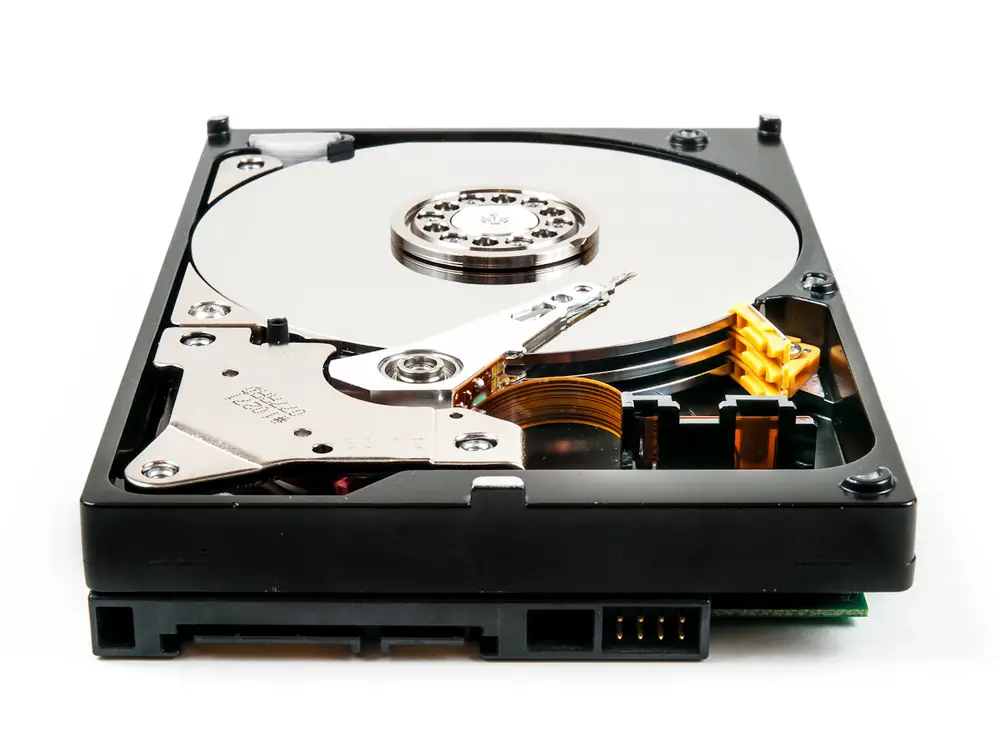
Signs of a failing hard drive
- Clicking, ticking, or grinding sounds, especially new ones.
- The PC freezes for a few seconds when opening files or folders.
- Startup and everything else getting slower over weeks, not just slow.
- Files that won't open or come up damaged.
- Windows running a disk check at startup repeatedly.
A slow PC isn't always a failing drive, though. An old spinning hard drive can be perfectly healthy and still be the reason your PC feels slow. My guide to finding out why a computer is slow shows how to tell.
Other ways to check
- The drive maker's app. Samsung Magician, Crucial Storage Executive, and WD Dashboard show health for their own drives and can install firmware updates.
- PowerShell. Open PowerShell as administrator and run the command below. Wear is a percentage used on SSDs that report it. Many drives leave some fields blank.
Get-PhysicalDisk | Get-StorageReliabilityCounter | Select-Object DeviceId, Wear, Temperature, ReadErrorsUncorrected
- Linux. The Disks app in Ubuntu and many other versions has a SMART Data & Self-Tests option in its menu. From a terminal,
sudo smartctl -a /dev/sda(from the smartmontools package) shows everything. That's also handy if a PC won't start Windows anymore: boot a Linux USB stick and check the drive from there.
If your drive is failing
- Copy your important files first. Photos, documents, and anything you can't replace, to an external drive or cloud storage. Don't run defrag or repair tools first. Extra work can push a failing hard drive over the edge. My backup guide covers the easy ways.
- Replace the drive. In most PCs this is an easy, cheap job, and moving from a hard drive to an SSD makes the PC much faster at the same time. If Windows still starts, you can clone the old drive to the new SSD so nothing needs reinstalling.
- Wipe or destroy the old one before it leaves your hands. A drive that barely works can still hold readable data. Here's how to wipe a drive, and where to recycle it around Topeka.
If the drive has already stopped working and holds files you truly can't lose, stop trying things yourself and talk to a professional data recovery service. Every attempt on a dying drive makes recovery harder.
Drive health questions
How do I check my SSD health in Windows 11?
For an NVMe SSD, go to Settings, System, Storage, Advanced storage settings, Disks & volumes, pick the drive, and click Properties. The Drive health section shows estimated remaining life, available spare, and temperature. For SATA SSDs and hard drives, use the free CrystalDiskInfo app.
What does Caution mean in CrystalDiskInfo?
On a hard drive, Caution means it has found reallocated, pending, or uncorrectable sectors, which are areas of the disk that went bad. On an SSD, it usually means the estimated remaining life is 10% or less. Back up your files right away and plan to replace the drive.
How long do SSDs last?
Most people never wear one out. SSDs are rated for a total amount of data written, often hundreds of terabytes, and everyday home use writes far less than that per year. They can still fail for other reasons, so keep backups either way.
What are the signs of a failing hard drive?
Clicking or grinding noises, the PC freezing when opening files, very slow startups that get worse, files that won't open, and warnings from CrystalDiskInfo or Windows. If you notice any of these, copy your important files off first, then check the drive.
Is CrystalDiskInfo safe?
Yes, from its official site, crystalmark.info. It only reads the drive's health data and doesn't change anything. Watch out for lookalike download sites with similar names.