
Running a Proxmox cluster on mini PCs

My homelab is three used mini PCs clustered together with Proxmox, with virtual machines and containers stored on a NAS. It's quiet, it uses a fraction of the power of an old server, and one machine can go offline without taking everything else with it. Here's how a small cluster like that fits together, and what to know before you build one.
The short version
- Use three nodes, so the cluster keeps working when one is down.
- Give each node its final name and a fixed IP address before you create the cluster. You can't change them later.
- Join the nodes before you create VMs or containers on them.
- Put VM and container storage on a NAS over NFS, so moving things between nodes takes seconds.
Why cluster mini PCs?
One mini PC running Proxmox can handle a lot on its own. A cluster adds a few things a single box can't do:
- One place to manage everything. Log in to any node's web page and you see and control all three.
- Maintenance without downtime. Move the VMs and containers off one node, update it, reboot it, and move them back. Nothing you rely on has to go offline.
- Room to grow. When you run out of memory, add another used mini PC instead of replacing what you have.
- Low power. ServeTheHome measured Lenovo M720q and M920q mini PCs at about 11 to 15 watts each at idle. Three of them idle at roughly 35 to 45 watts, far below the 100 to 200 watts an old rack server commonly draws.
Why three nodes
A Proxmox cluster only makes changes when a majority of nodes agree. Each node gets one vote, so a three-node cluster needs two. That majority is called quorum, and it keeps two halves of a broken cluster from both trying to run the same VM.
- All three up: normal.
- One down: the other two still have quorum. You can start, stop, and move things as usual.
- Two down: the last node loses quorum. What's already running keeps running, but it won't let you start anything or change settings until another node comes back.
That's why Proxmox recommends at least three nodes. With two, losing either one leaves the other stuck. There's a workaround for that at the end.
The hardware
My three nodes are a mix of tiny PCs, and they don't need to match. Proxmox is happy with a Lenovo Tiny, a Dell OptiPlex Micro, and an HP Mini in the same cluster. A few things make life easier:
- Memory is what runs out first. 16 GB per node is a comfortable start, and 32 GB goes a long way. Most 8th-gen and newer mini PCs take up to 32 or 64 GB.
- An SSD for Proxmox itself in each node. With storage on a NAS, it doesn't need to be big.
- Mixed processors and live migration. Proxmox's default CPU type for new VMs works across different processor generations. If you set a VM's CPU type to "host," it gets every feature of that node's processor, but it may not be able to move to a node with an older chip while running.
- BIOS settings: turn on virtualization (VT-x, and VT-d if you want to pass devices through), and set the PC to power on after a power loss so nodes come back by themselves.
I keep price trackers on my personal site if you're shopping: small Proxmox-ready PCs and memory.
Networking
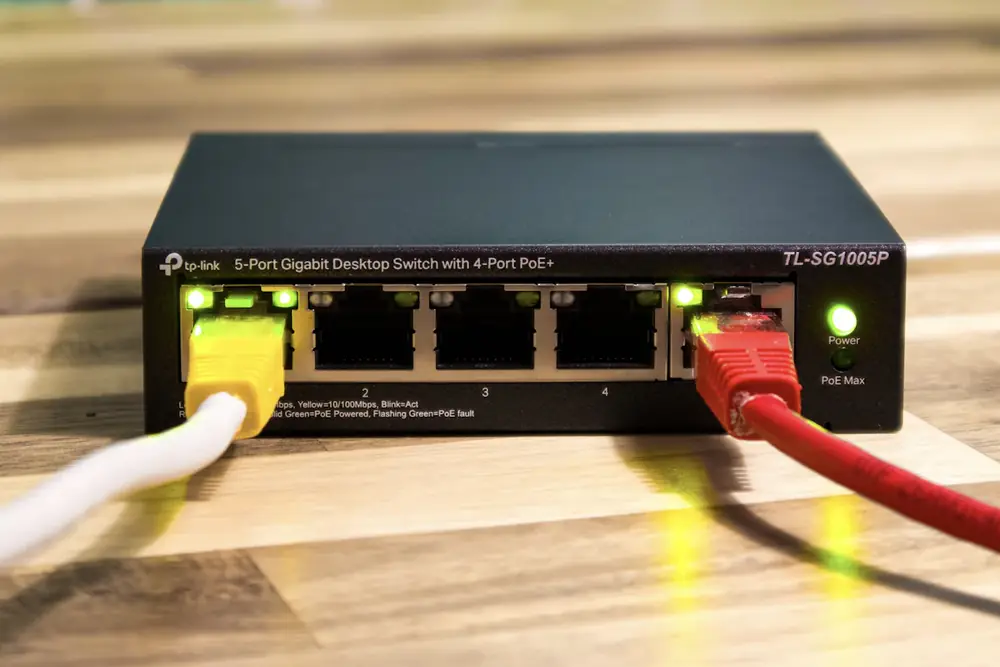
The cluster's heartbeat traffic (Proxmox uses a program called Corosync for it) is small but sensitive to delays. The Proxmox documentation asks for latency under 5 milliseconds between nodes, which any home switch handles easily. My nodes plug into a UniFi switch.
Proxmox also recommends putting cluster traffic on its own network, separate from storage and VM traffic. Most mini PCs have a single Ethernet port, so in a homelab the cluster usually shares it. That works fine on a quiet home network. If big backups or migrations ever crowd it, Corosync can use more than one link, so a second network adapter in each node gives it a backup path.
Before you start, reserve a fixed IP address for each node in your router, and decide on the hostnames. Neither can be changed once the cluster exists.
Storage on a NAS
My VMs and containers live on a NAS that every node can reach over the network. When storage is shared, moving a running VM to another node only has to copy its memory, not its disk, so it's done in seconds. It also keeps the mini PCs simple: each one only needs a small SSD for Proxmox.
NFS is the usual way to share it, and SMB/CIFS works too. To add an NFS share, go to Datacenter > Storage > Add > NFS, enter the NAS address and the shared folder, and choose what it holds (disk images, containers, backups). Adding it at the Datacenter level makes it available on every node.
The trade-offs are worth knowing:
- The NAS becomes the thing everything depends on. If it goes down or reboots, the VMs stored on it stop working, no matter how many nodes are up.
- Disk speed is limited by the network. Gigabit Ethernet tops out around 110 MB per second, which is plenty for DNS, apps, and dashboards, but slower than a local SSD.
- Backups belong somewhere else too. Backups saved to the same NAS as the VMs won't help if the NAS fails. Keep a copy on another drive or offsite.
The main alternatives are local storage on each node with ZFS replication between them, or Ceph, which spreads storage across the nodes. Ceph wants several drives per node and a fast network, so it's a stretch for mini PCs with one or two drive slots.
Setting up the cluster
- Install Proxmox VE on each mini PC from a USB stick. Use the same version everywhere. As of September 2026, the current release is 9.2.
- Set the hostname and fixed IP during install. Without a paid subscription, switch each node to the free no-subscription repository on its Repositories page, then install updates from the Updates page.
- On the first node, go to Datacenter > Cluster > Create Cluster, give it a name, and create it.
- Still on the first node, click Join Information and copy the text.
- On each of the other nodes, go to Datacenter > Cluster > Join Cluster, paste the join information, and enter the first node's root password. Do this before creating any VMs or containers on them. A joining node's own settings get replaced by the cluster's.
- Add your NAS storage at the Datacenter level, as above.
- Test it. Create a small VM, right-click it, choose Migrate, and move it to another node while it's running. (Containers can move too, but they restart on the new node.)
What runs on mine
Nothing exotic. Most of it is the kind of thing covered in my guide to turning an old PC into a home server, just spread across three machines:
- Self-hosted apps in Docker, running inside LXC containers and VMs. Containers are lighter on memory. Proxmox's own documentation recommends a VM for Docker, for stronger isolation from the host and because a running VM can move to another node, while a container has to restart. If you only want one way of doing it, a VM is the safer choice.
- DNS and ad blocking for the house.
- A Tailscale subnet router, which lets me reach everything on my home network from anywhere without opening any ports on the router.
Tailscale runs happily in an unprivileged LXC container, but the container needs access to the network tunnel device. Add these two lines to the container's config file (/etc/pve/lxc/<ID>.conf) on the node, then restart the container:
lxc.cgroup2.devices.allow: c 10:200 rwm
lxc.mount.entry: /dev/net/tun dev/net/tun none bind,create=file
Inside the container, turn on IP forwarding, install Tailscale, and bring it up as a subnet router for your home network. Change the address range to match yours:
tailscale up --advertise-routes=192.168.1.0/24 --accept-dns=false
Then approve the route in the Tailscale admin console.
I use --accept-dns=false on all my containers. Without it, Tailscale takes over the container's DNS settings, and on a network that runs its own DNS server, that's an easy way to end up with containers that can't look up anything.
High availability
Three nodes and shared storage are exactly what Proxmox's HA feature asks for. With HA turned on for a VM, if its node dies, the cluster restarts it on another node automatically. Proxmox says detection and failover typically take about two minutes. A node running HA services that loses contact with the others reboots itself, so a VM can't end up running in two places at once.
It's optional, and it's not the same as zero downtime. For home use, it's most useful for the handful of things everyone in the house notices when they break, like DNS. Since Proxmox VE 9.0, where HA resources are allowed to run is set with HA rules, which replaced the older HA groups.
If you only have two
A two-node cluster works, but losing either node leaves the other without quorum. The fix is a QDevice: a small voting service on a third machine, like a Raspberry Pi or a VM on another computer (not on the cluster itself). It gives the cluster a third vote, so either node can keep going alone. When you're ready, a third mini PC does the same job and adds capacity.
Proxmox cluster questions
How many nodes do you need for a Proxmox cluster?
Proxmox recommends at least three nodes. Each node gets one vote, and the cluster needs a majority to make changes, so with three nodes one can go down and the other two keep working. A two-node cluster works with a small third voter called a QDevice.
Can you mix different mini PCs in a Proxmox cluster?
Yes. A Lenovo Tiny, a Dell OptiPlex Micro, and an HP Mini can all be in the same cluster. Keep every node on the same Proxmox version, and use the default CPU type for virtual machines rather than "host" if you want to move them between nodes with different processors.
Do you need shared storage for a Proxmox cluster?
No, but it helps. With virtual machine disks on a NAS shared over NFS, moving a VM to another node only copies its memory, so it takes seconds. Proxmox's high availability feature also expects shared storage, or storage replication between nodes.
Can a Proxmox cluster have two nodes?
Yes, but if one node goes down the other loses its majority and won't let you start or change anything. The fix is a QDevice, a small service on a third machine like a Raspberry Pi that gives the cluster a third vote.
How much power does a mini PC Proxmox cluster use?
ServeTheHome measured Lenovo M720q and M920q mini PCs at about 11 to 15 watts each at idle, so three of them idle at roughly 35 to 45 watts. That's a fraction of the 100 to 200 watts a typical old rack server draws.